Purchases
Purchases is every order you’ve recorded, newest first — order number, supplier, how many lines and units, and (Business tier) the landed total. Click an order to see its full receipt.
Every order you’ve recorded
Search by order number or filter to one supplier.
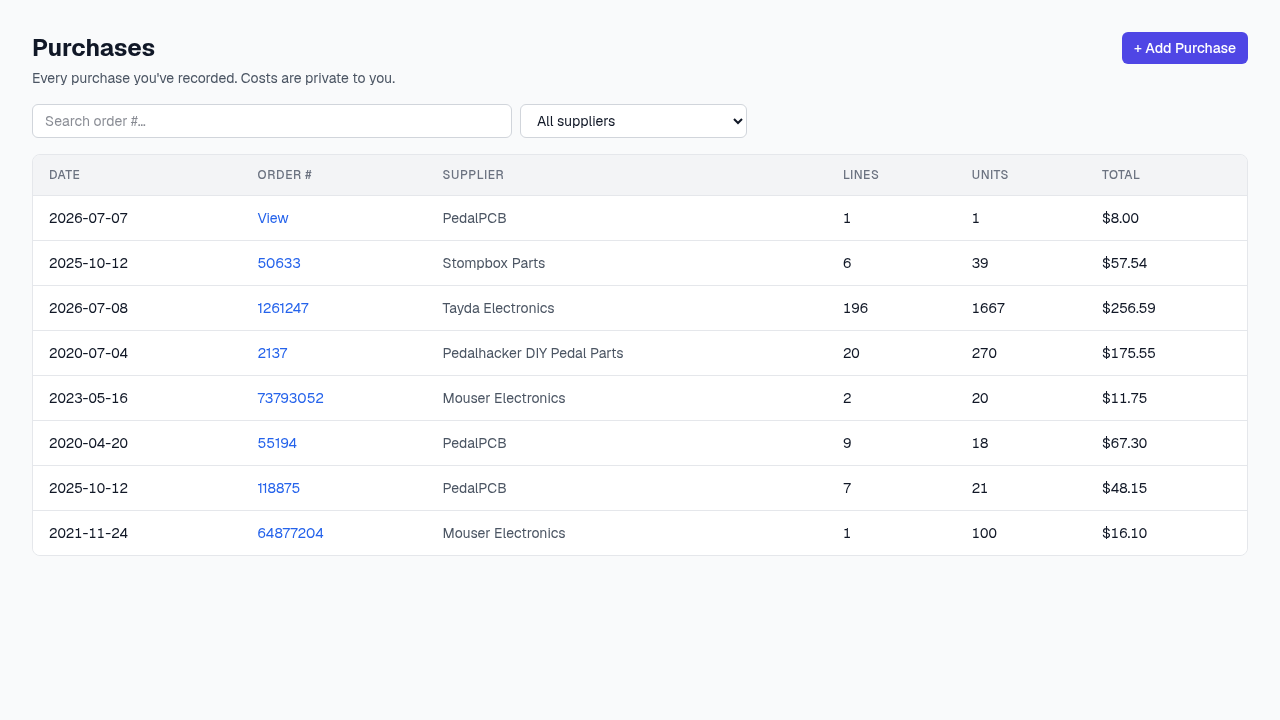
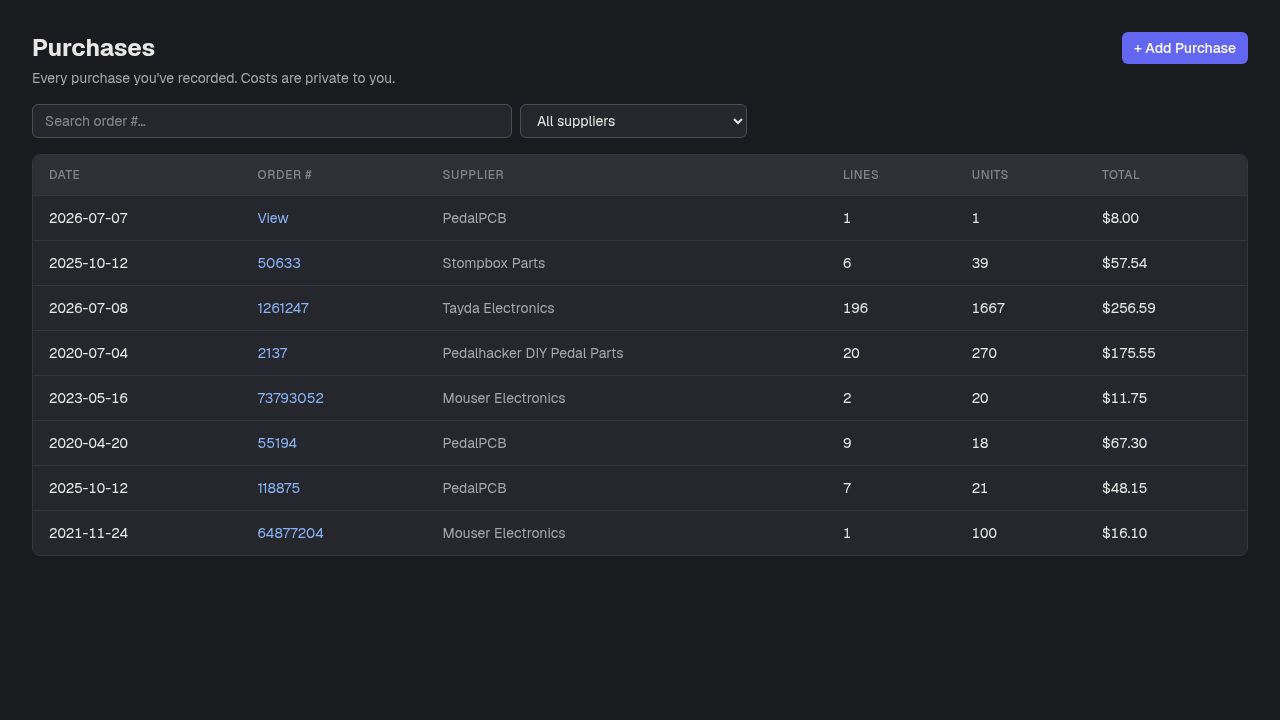
- 1+ Add Purchase — Record a new order: pick a supplier, list what arrived, and (Business tier) enter unit costs and shipping/tax/fees.
- 2Filter by supplier — Narrow the list to one vendor.
- 3Order # — Opens the full receipt for that order — every line, with its list and landed cost.
- 4Total — The order’s landed cost. Business-tier only — a Premium-but-not-Business account records quantities but never sees dollar figures.
One page, typed or imported
Type lines in by hand, or import a vendor file into the same form.
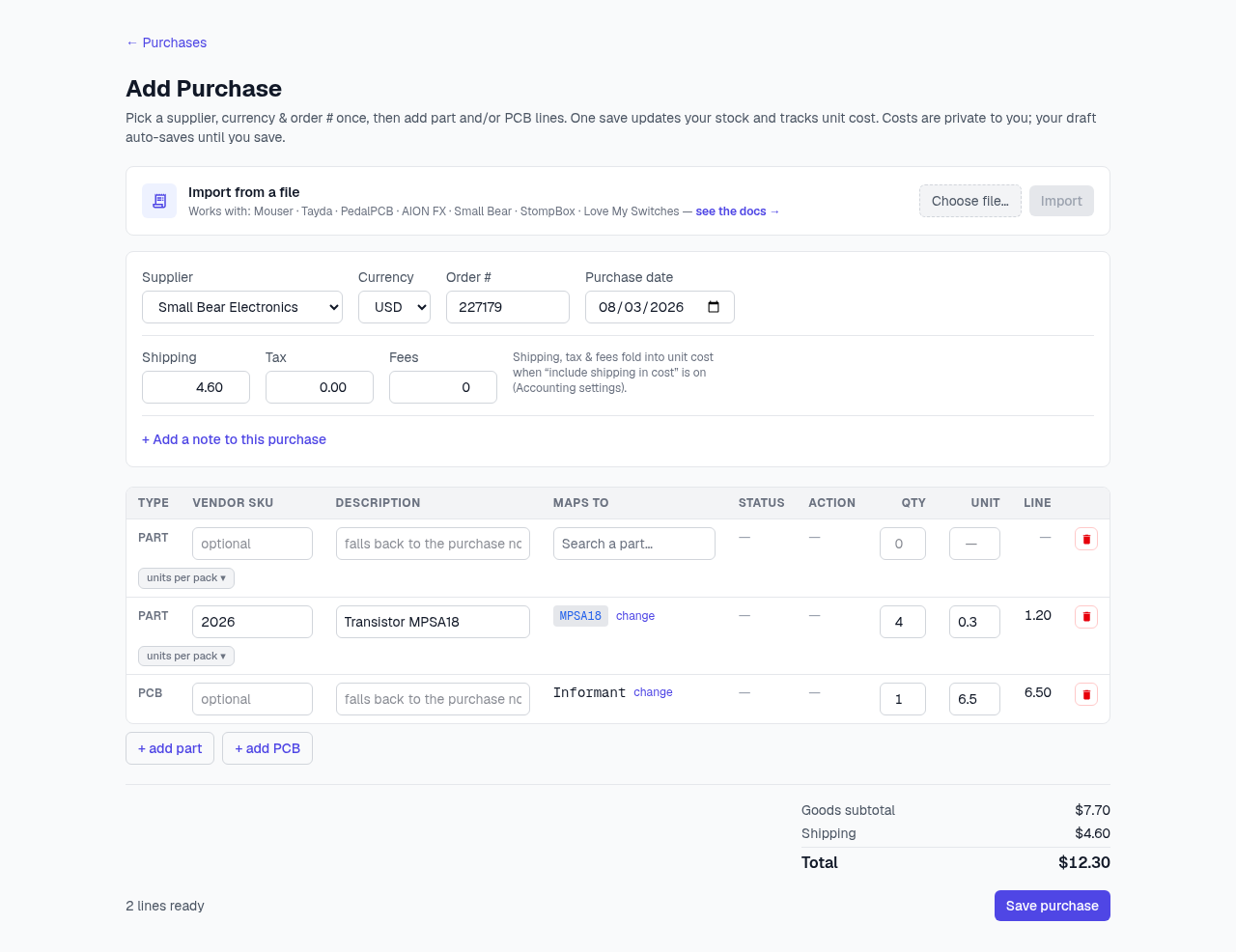
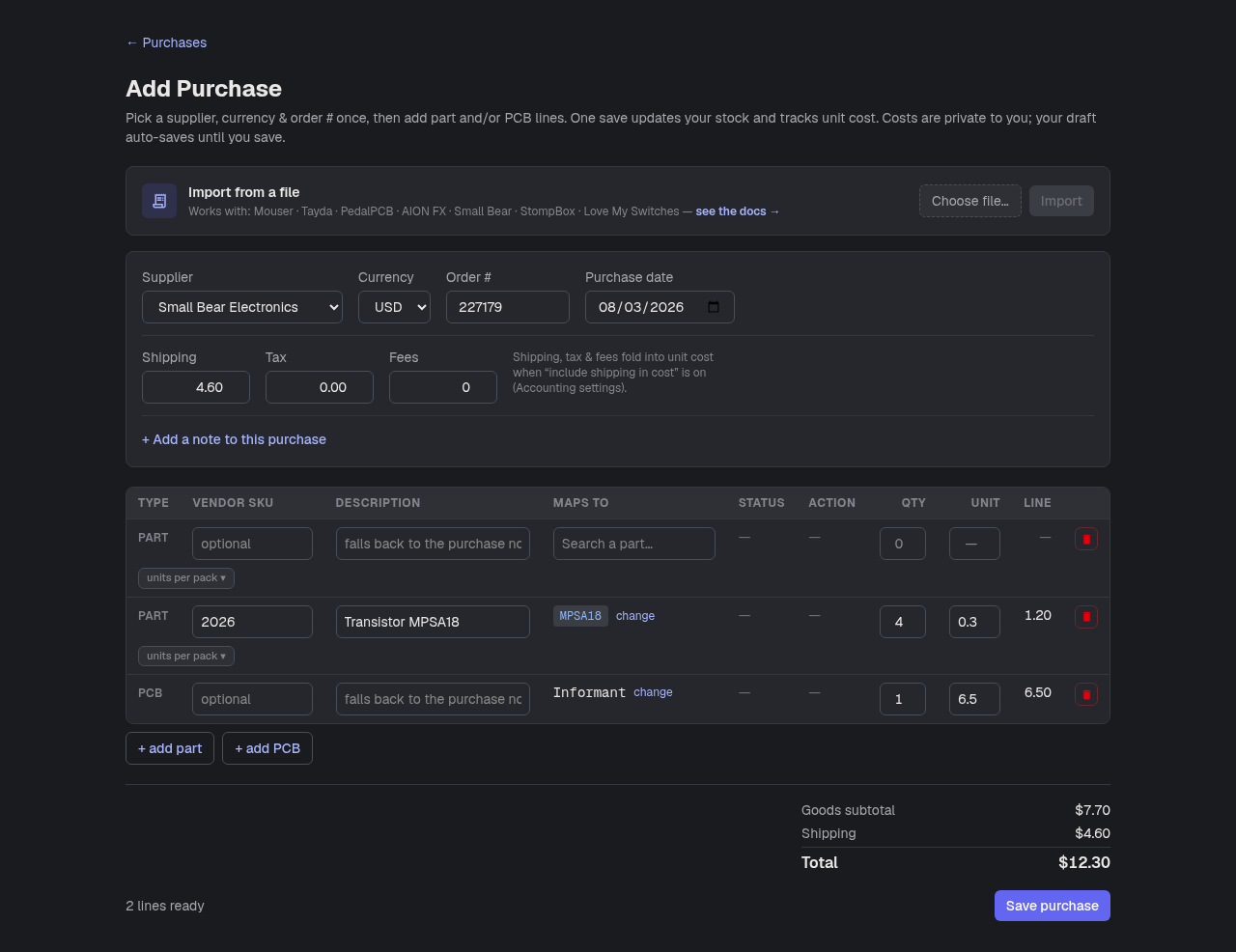
- 5Import from a file — Choose a vendor order file and press Import — it fills in the same header fields and line table below, so importing pre-fills this form rather than opening a separate flow. Works with Mouser, Tayda, PedalPCB, AION FX, Small Bear, StompBox, and Love My Switches exports.
- 6Supplier, order #, date — Set once for the whole order. A vendor not in the list can be typed inline — it’s created Proposed for maintainer review. Currency, Shipping/Tax/Fees, and the Unit/Line cost columns are Business-tier only — a Premium-but-not-Business account records quantities on a simpler form with none of that.
- 7One line table — Every line — typed or imported — carries a Vendor SKU (typing one teaches the matcher for your next import), a Description that doubles as the line’s note, and a units-per-pack splitter for bag-of-N purchases.
- 8+ add part / + add PCB — Each line opens the catalog picker. A part not in the catalog can be created inline as your own private part.
- 9Save purchase — One save records the header, a cost lot + ledger entry per line, and bumps on-hand. The draft auto-saves to your browser until then.
Import fills in the form you’re already looking at
Two clicks — choose the file, press Import — then resolve any flagged lines and save.
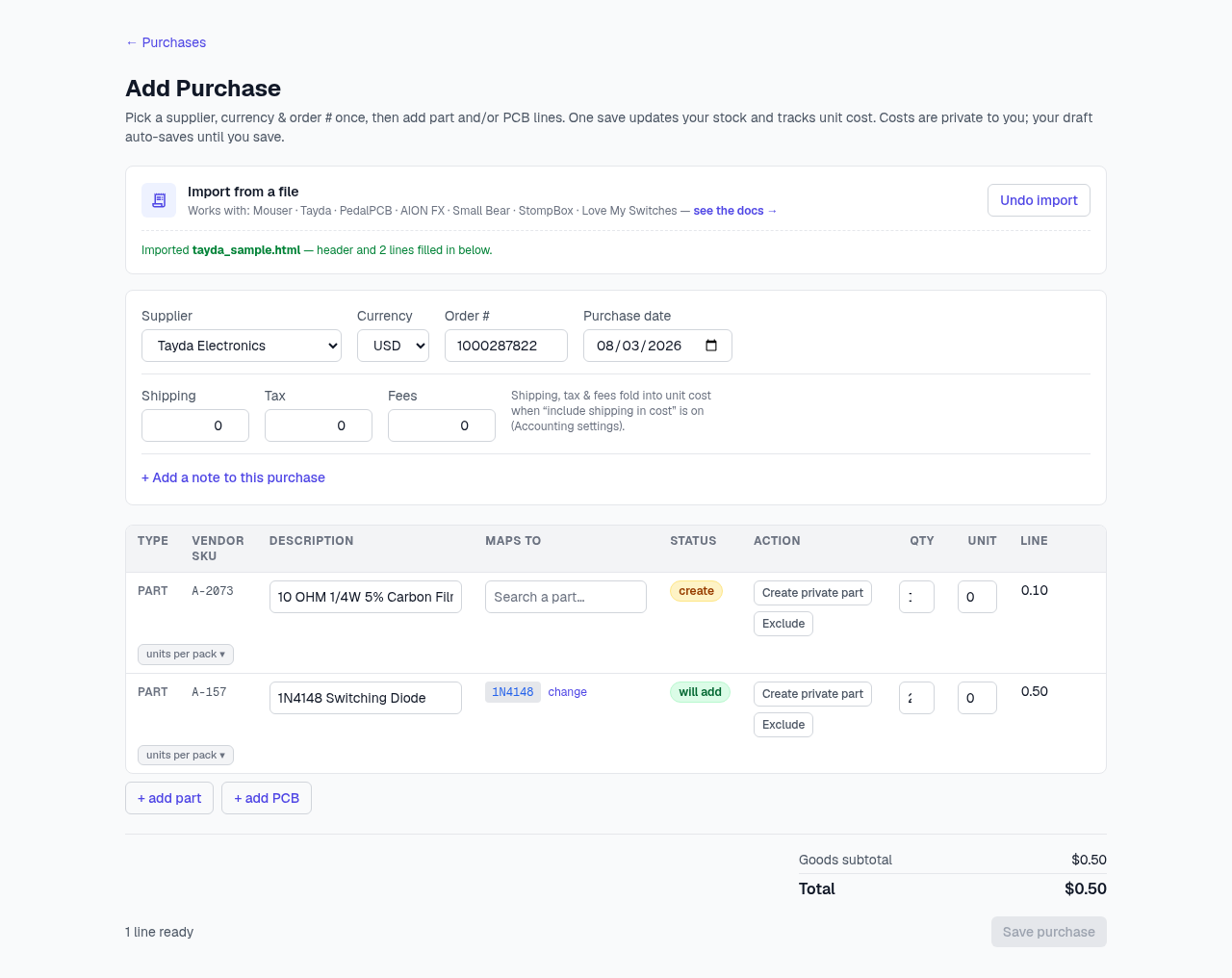
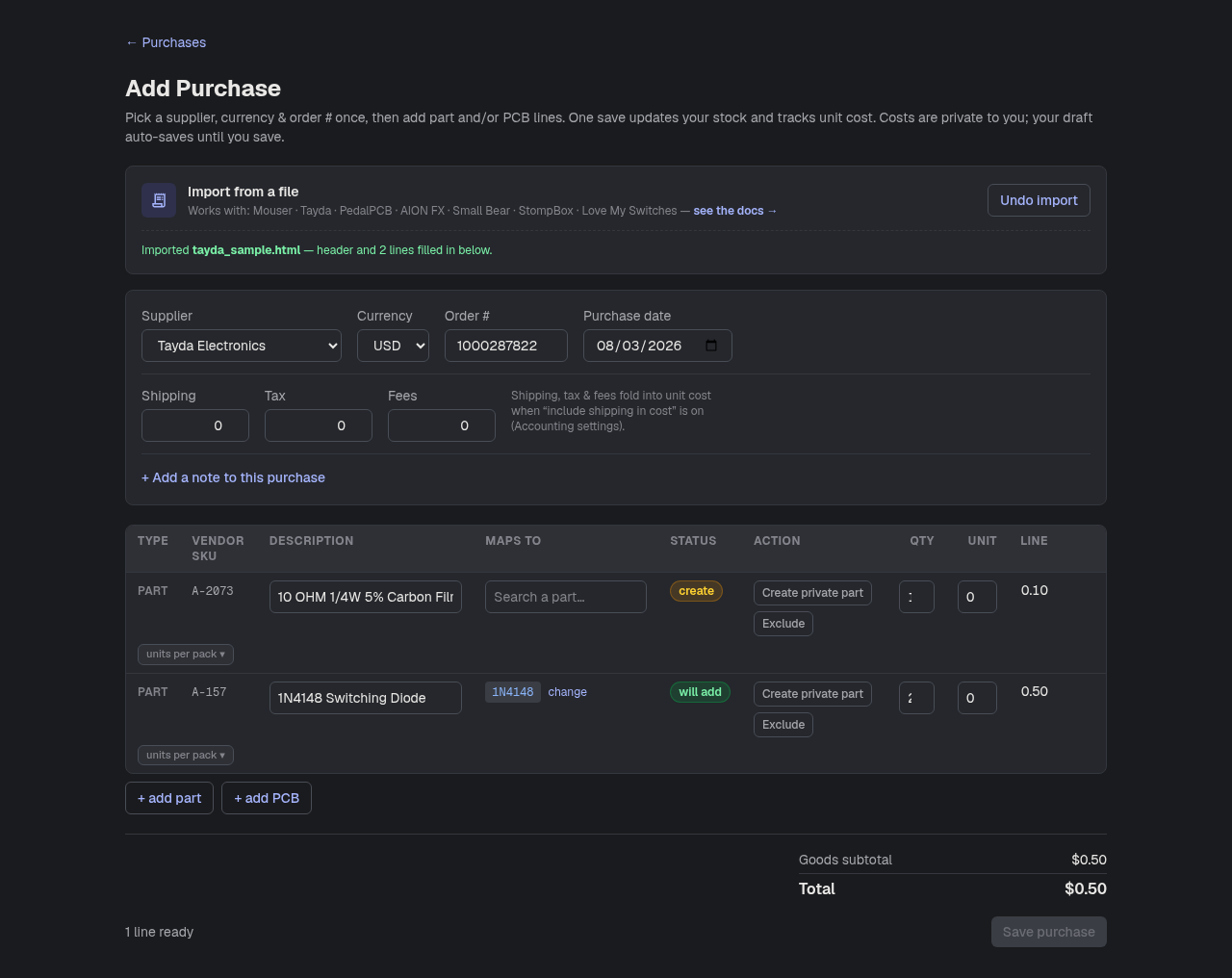
- 10Undo import — The bar confirms what was read from the file; Undo discards the parsed order and returns you to an empty hand-typed form.
- 11Header autofill — Supplier, order # and date come from the file — and only overwrite a field the file actually carried, so anything you had already typed survives the import.
- 12Maps to — What each imported line will record against. A line the matcher couldn’t finish shows the catalog picker right in this cell — picking the part is the fix; there’s no separate “find” button.
- 13Status — ✓ will add (matched cleanly), create (no catalog match yet), or needs attention (something’s ambiguous). Resolve each flagged line by picking a match, creating a private part, or excluding it.
- 14Exclude — Drops an imported line from the order as a recorded decision — the row stays visible. Imported rows have no remove ×; only hand-typed rows do.
- 15Save purchase (gated) — Save refuses while any line still needs a decision — the server hard-blocks such a commit anyway, so the page says so up front. If the order looks like one you already recorded, a yes/no confirm lets you record it anyway.
Good to know
- Premium feature. Costs are private to you and only visible at all on the Business tier.
- On Add Purchase specifically: currency, unit/ext. cost, shipping/tax/fees, and the running total are Business-tier UI — a Premium-but-not-Business account gets a simpler form/table that records quantities only.
- The old two-step /purchases/import flow is retired — that URL now redirects here. Same parser and matcher, one page instead of five clicks.