PCB detail
A project’s page is everything you need to build a pedal: the board’s metadata and actions up top, then four tabs — Bill of Materials, Parts List, Reviews, and PCB Inventory. What you can do here grows with your account, and signed in as a maintainer the page gains curation tools (covered at the bottom).
What you can do depends on your account
Signed out — read everything (metadata, BOM, Parts List, reviews) and follow the source / build-doc links. Cart, favorites, reviews, and inventory show a sign-in prompt.
Signed in — add the board to your cart, favorite it, and write a review.
Premium — also gets “Create Build” (start a tracked build from this board) and the PCB Inventory tracker.
Maintainers — get extra curation tools layered on (see “For maintainers & admins” at the end).
The header & actions
Identity, metadata, and the things you can do with the board. (Shown signed out.)
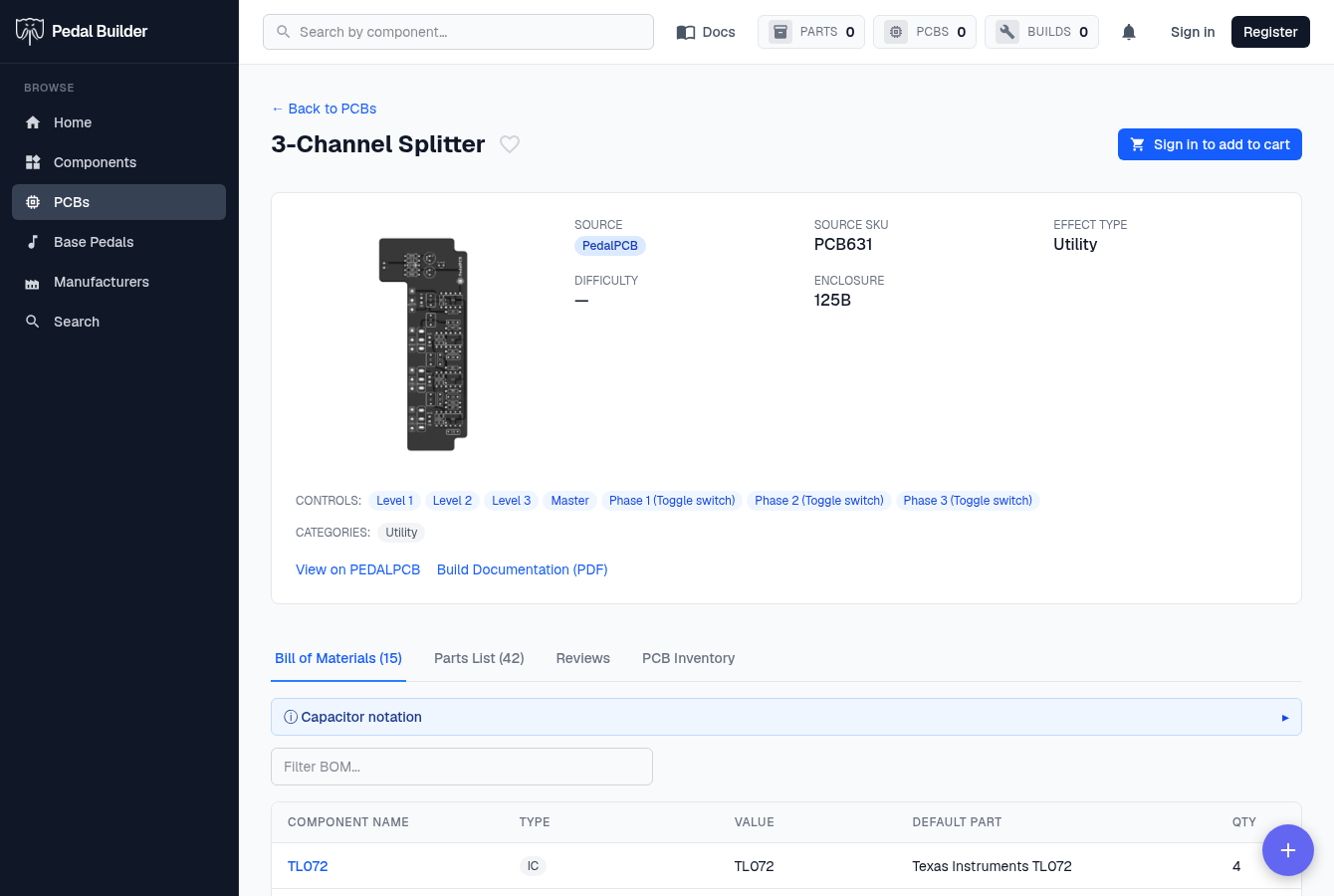
- 1Favorite — The heart bookmarks this board (needs an account).
- 2Add to Cart — Adds the board to your PCB cart. Signed out it reads “Sign in to add to cart”; for Premium members a “Create Build” button sits alongside it to start a tracked build from this board.
- 3Metadata — Source, Source SKU, Effect Type, Difficulty, and Enclosure.
- 4Controls & Categories — The pedal’s knobs/switches and its category tags.
- 5View on source · Build Documentation — Open the project’s page on the original site, or its build PDF.
- 6Tabs — Bill of Materials, Parts List, Reviews, and PCB Inventory — walked through below.
Bill of Materials tab
The default tab — the board grouped down to its distinct components, with a combined quantity (so 42 physical slots collapse to ~15 lines).
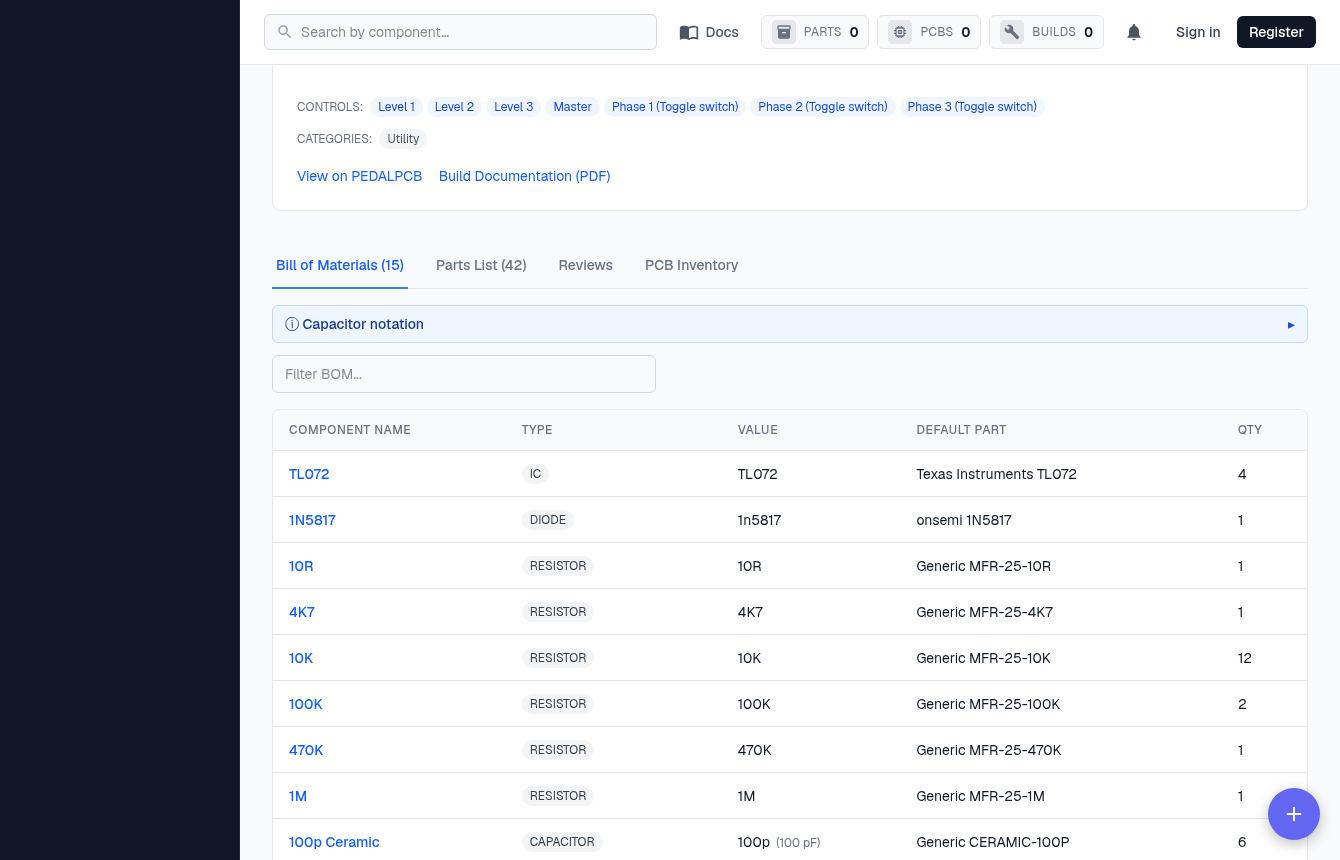
- 7Filter & Capacitor notation — “Filter BOM…” narrows the list as you type; the “Capacitor notation” strip expands a cheat-sheet for the value shorthand (100p = 100 pF, etc.).
- 8Columns — Component Name (links to the component), Type, Value (“—” for ICs), Default Part (the buyable part it resolves to), and Qty (how many the whole board uses, summed across designators — e.g. 10K ×12).
Parts List tab
The same board expanded to every individual reference-designator position (so 15 BOM lines become the 42 slots you actually populate).
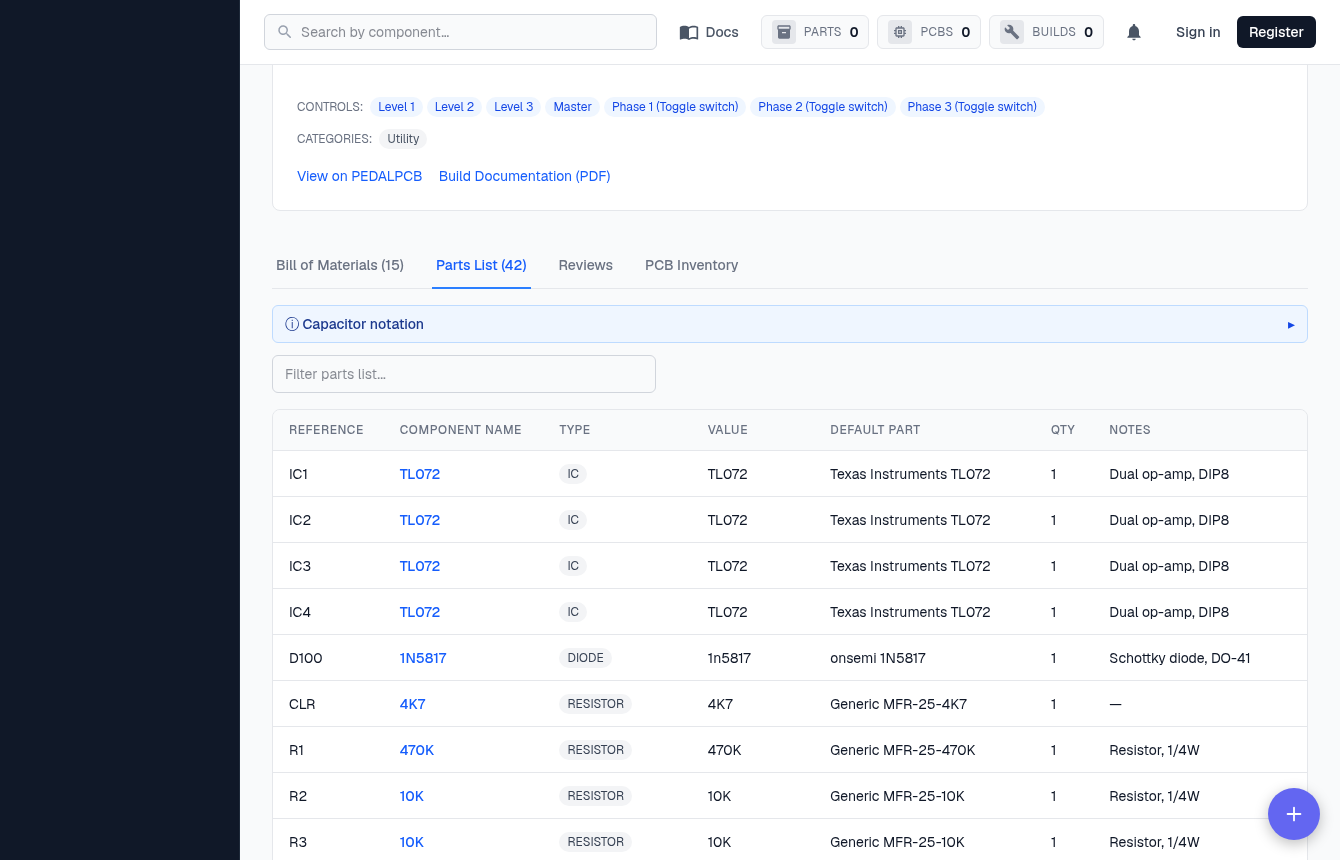
- 9Columns — Reference (the designator silkscreened on the board — IC1, R7, C3 — the column the BOM tab doesn’t have), Component Name, Type, Value, Default Part, Qty (usually 1), and Notes (any per-slot note from the build doc).
Reviews tab
Community build reviews for the project.
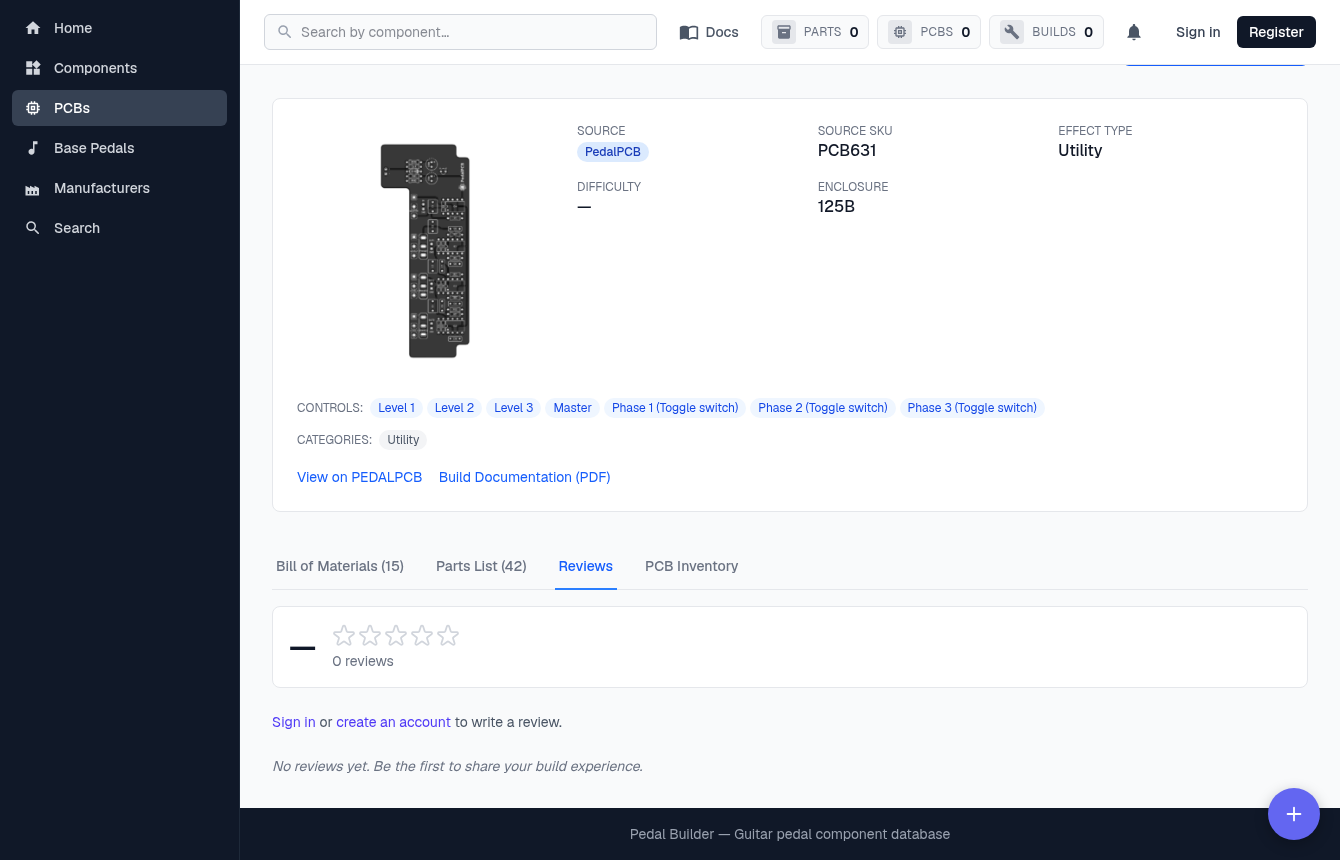
- 10Reviews — A star-rating summary + count at the top, then the reviews. Anyone can read them; signed out you get a “Sign in or create an account to write a review” prompt, and signed in a star picker + text box to post (and later edit/delete) your own.
PCB Inventory tab
Tracks how many blank copies of THIS board you have on hand — the per-project slice of your PCB inventory, and what feeds the top-bar PCBS badge.
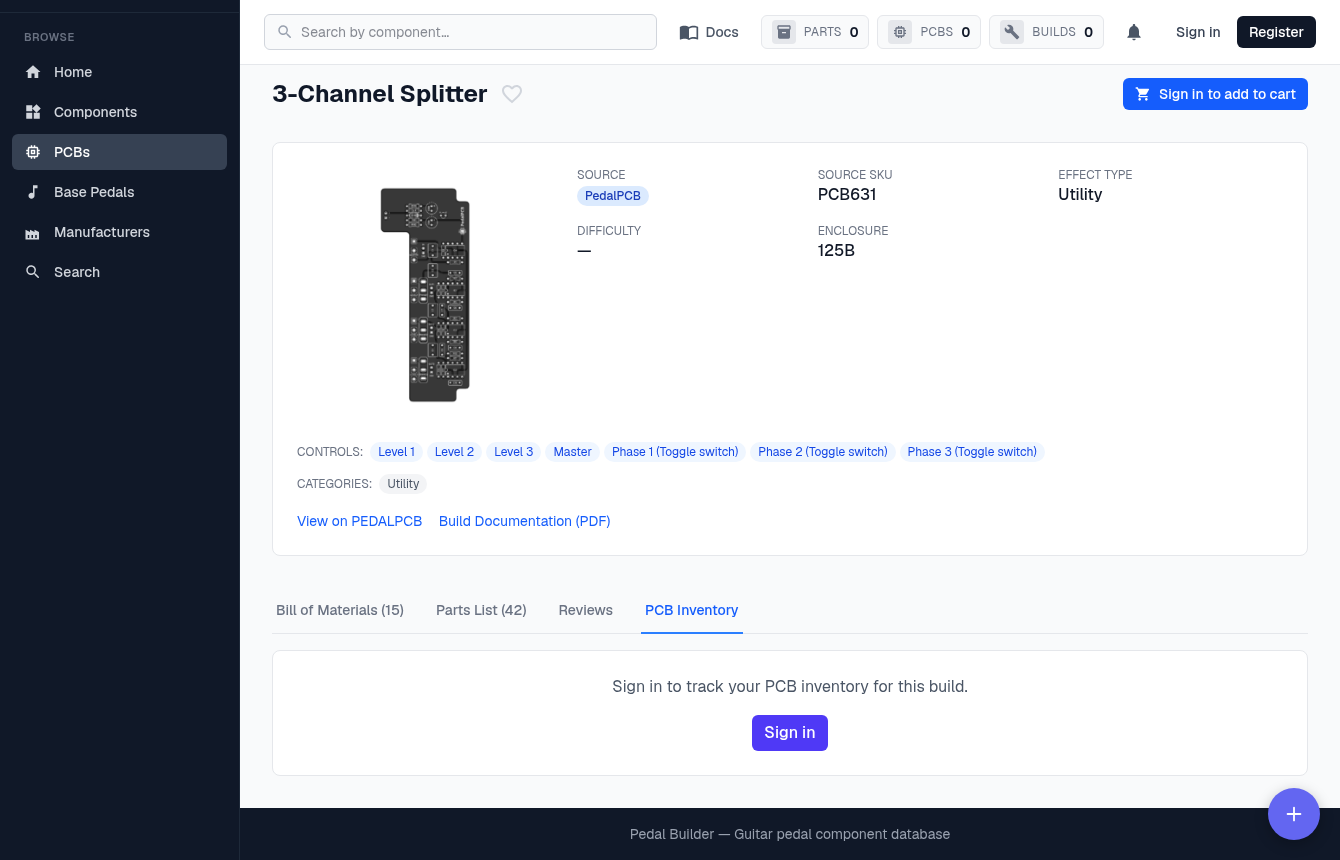
- 11Sign-in gated — Signed out (shown here) it’s a “Sign in to track your PCB inventory for this build” prompt; signed in it shows your on-hand count with controls to set or adjust it.