Account settings
Account settings is a tabbed page for everything about your account — your public Profile, core Account details, Privacy, Notification preferences, and Security (devices). Each tab is shown below.
Profile tab
Everything here feeds your public profile.
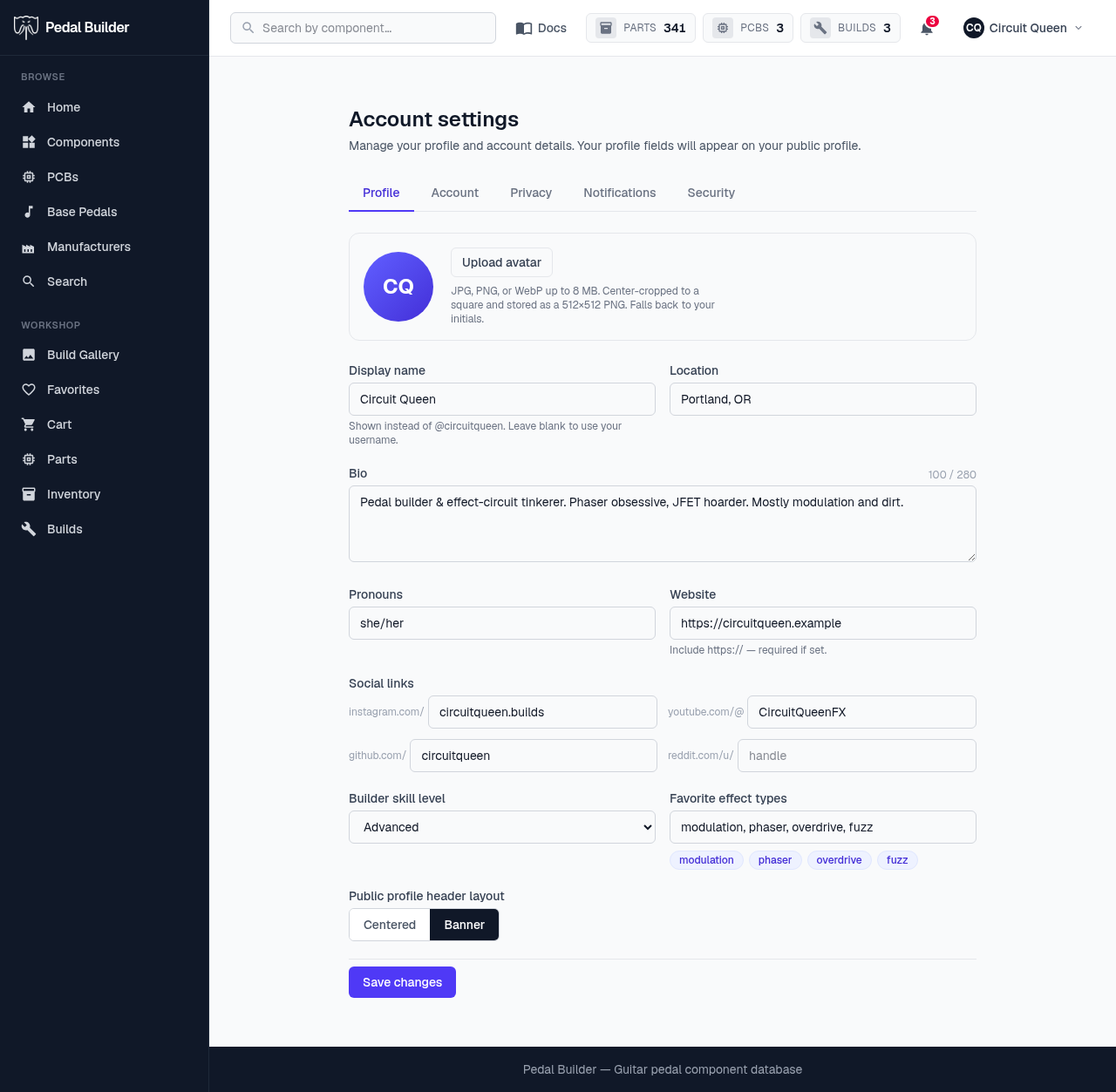
- 1Five tabs — Profile · Account · Privacy · Notifications · Security — switch between them here.
- 2Avatar — Upload a photo (it opens a rotate/crop editor, stored as a 512×512 PNG) or fall back to your initials.
- 3Profile fields — Display name, location, bio (280 chars), pronouns, and website — all shown on your public profile.
- 4Social links — Instagram, YouTube, GitHub, and Reddit handles render as links on your profile.
- 5Skill & effects — Your builder skill level and favorite effect types (a comma list that previews as pills).
- 6Save — “Save changes” writes the lot. A Centered / Banner toggle (just above) picks your profile header style.
Account tab
Your core identity — read-only for now.
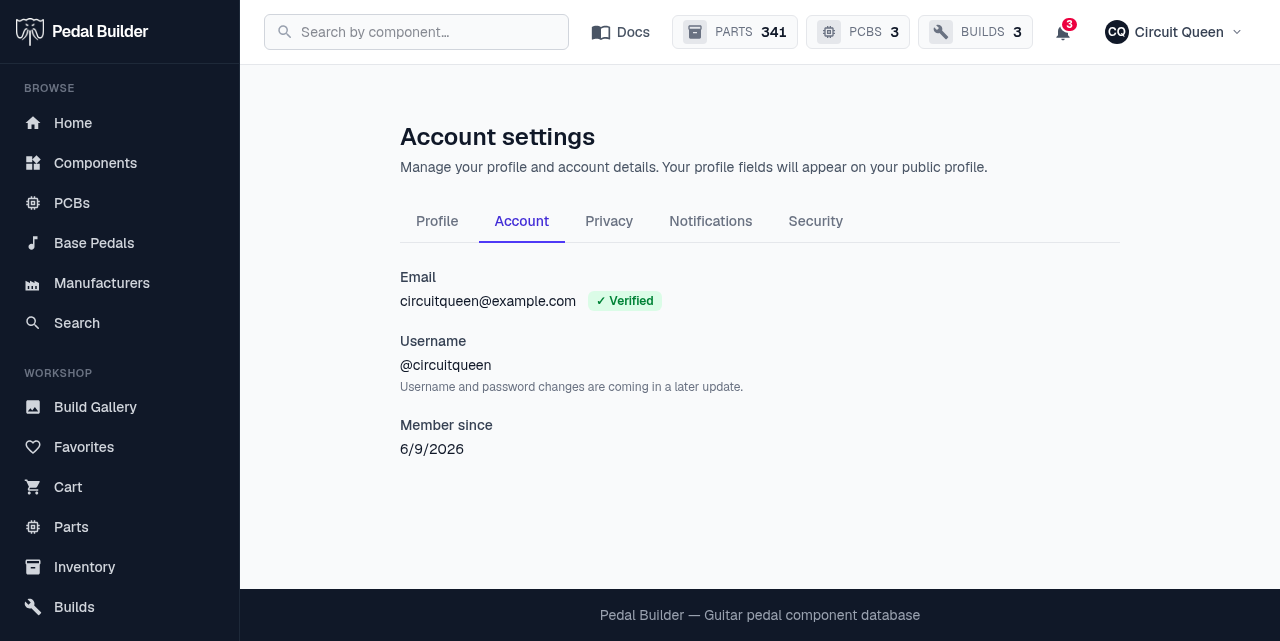
- 1Email & verification — Your email plus a ✓ Verified badge (or a “Resend verification” button if it isn’t verified yet).
- 2Username — Your handle. Username/password changes are coming in a later update.
- 3Member since — When you joined.
Privacy tab
Who can see your profile, and which parts.
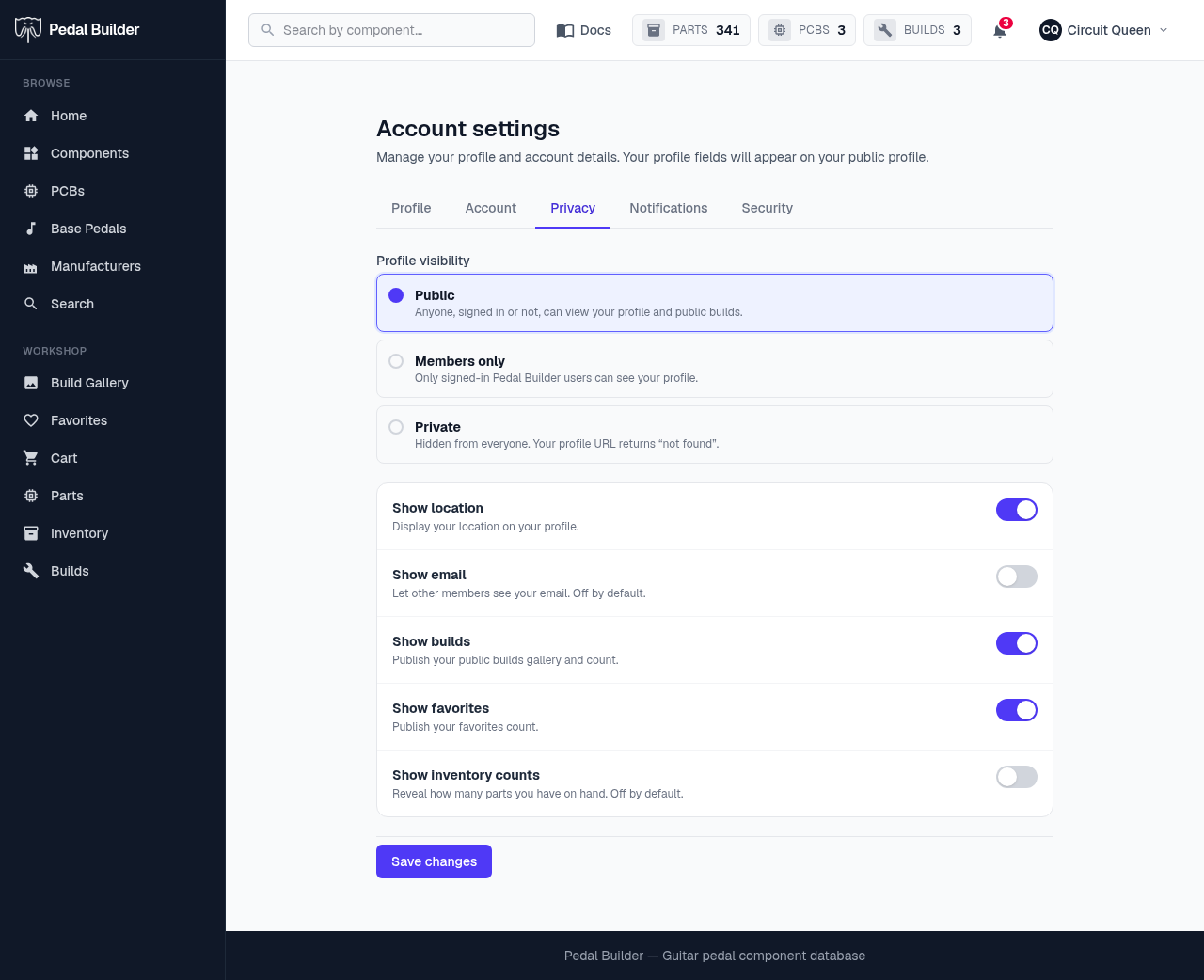
- 1Profile visibility — Public (anyone), Members only (signed-in users), or Private (hidden — your profile URL returns “not found”).
- 2Show / hide fields — Per-field toggles: location, email (off by default), builds, favorites, and inventory counts (off by default).
- 3Save — Applies your privacy choices.
Notifications tab
Choose what reaches your 🔔.
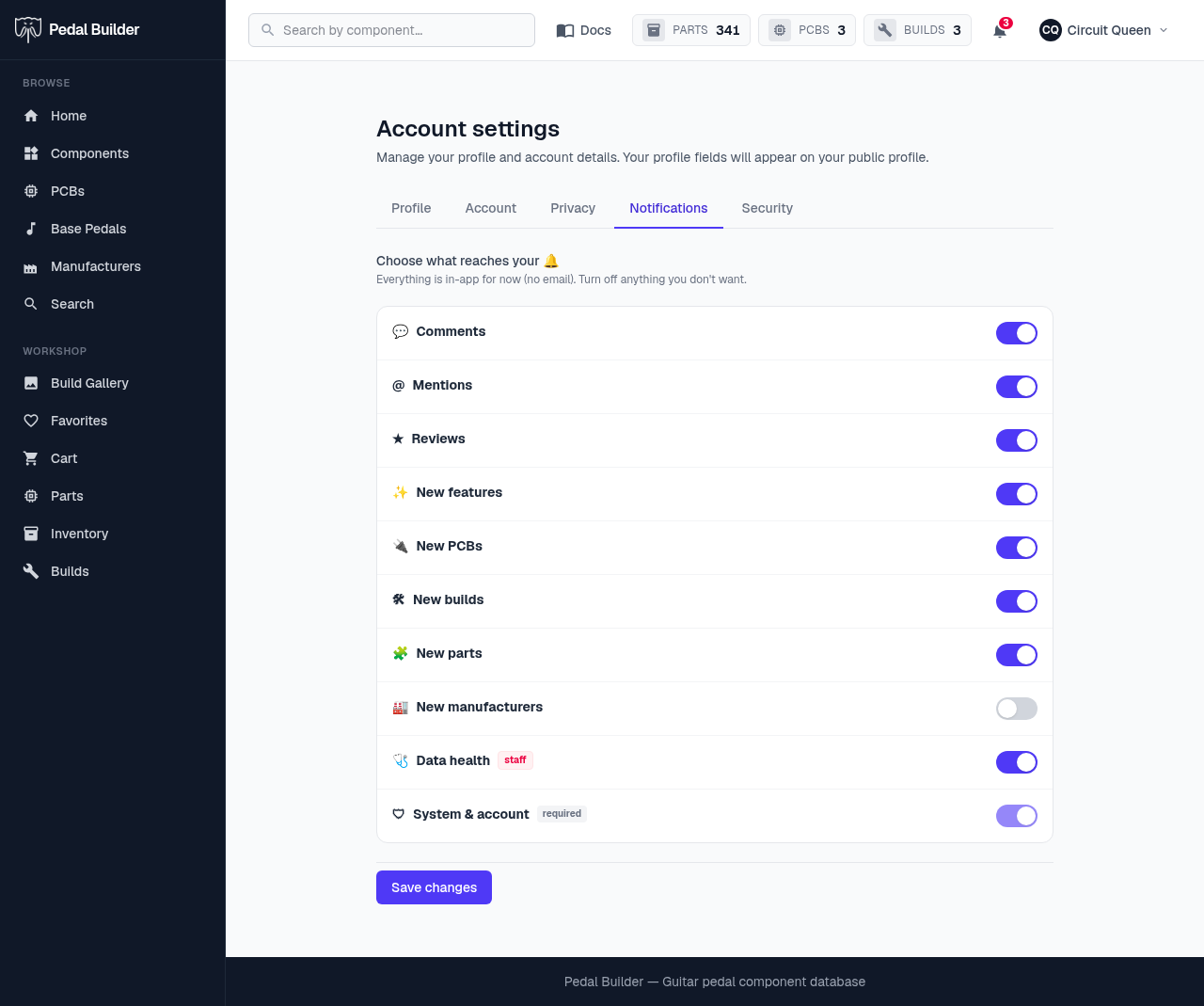
- 1Every category — One row per kind: comments, mentions, reviews, new features / PCBs / builds / parts / manufacturers, and more. Everything is in-app for now.
- 2Toggle each — Flip any category on or off.
- 3Staff-only — A “staff” badge marks maintainer-facing categories (e.g. data health).
- 4Always-on — “System & account” is marked required and can’t be turned off.
Security tab
Every device signed in to your account.
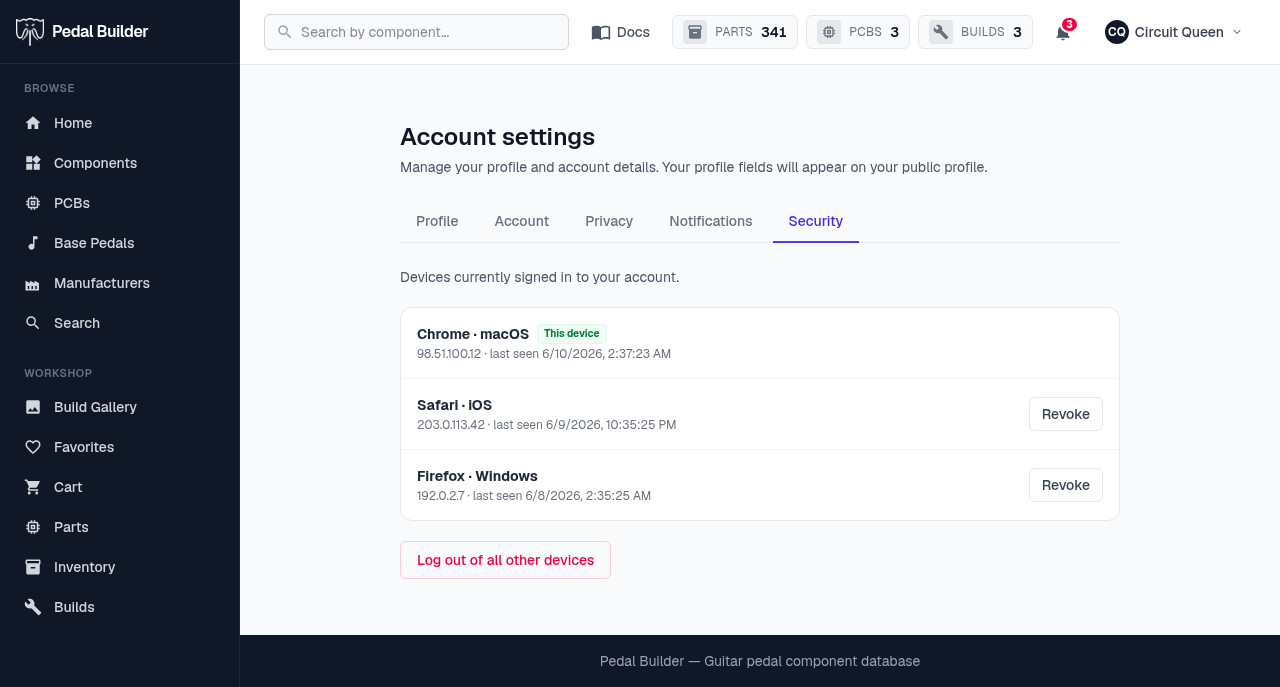
- 1Your devices — Each active session shows a device (parsed from the browser), IP, and last-seen time. Your current one is marked “This device”.
- 2Revoke one — Sign out a specific device you don’t recognise.
- 3Log out everywhere — “Log out of all other devices” ends every session except the one you’re on.
Good to know
- Requires an account; anonymous visitors are redirected to sign in.