Cart & combined BOM
The cart collects PCB projects and merges their parts into one combined bill of materials — so you can shop for several builds at once and, with Premium, load it all into your inventory in a click. It’s a PCB cart: you add boards, not individual parts.
PCBs in, one combined BOM out
Add boards up top; the aggregated parts list builds itself below.
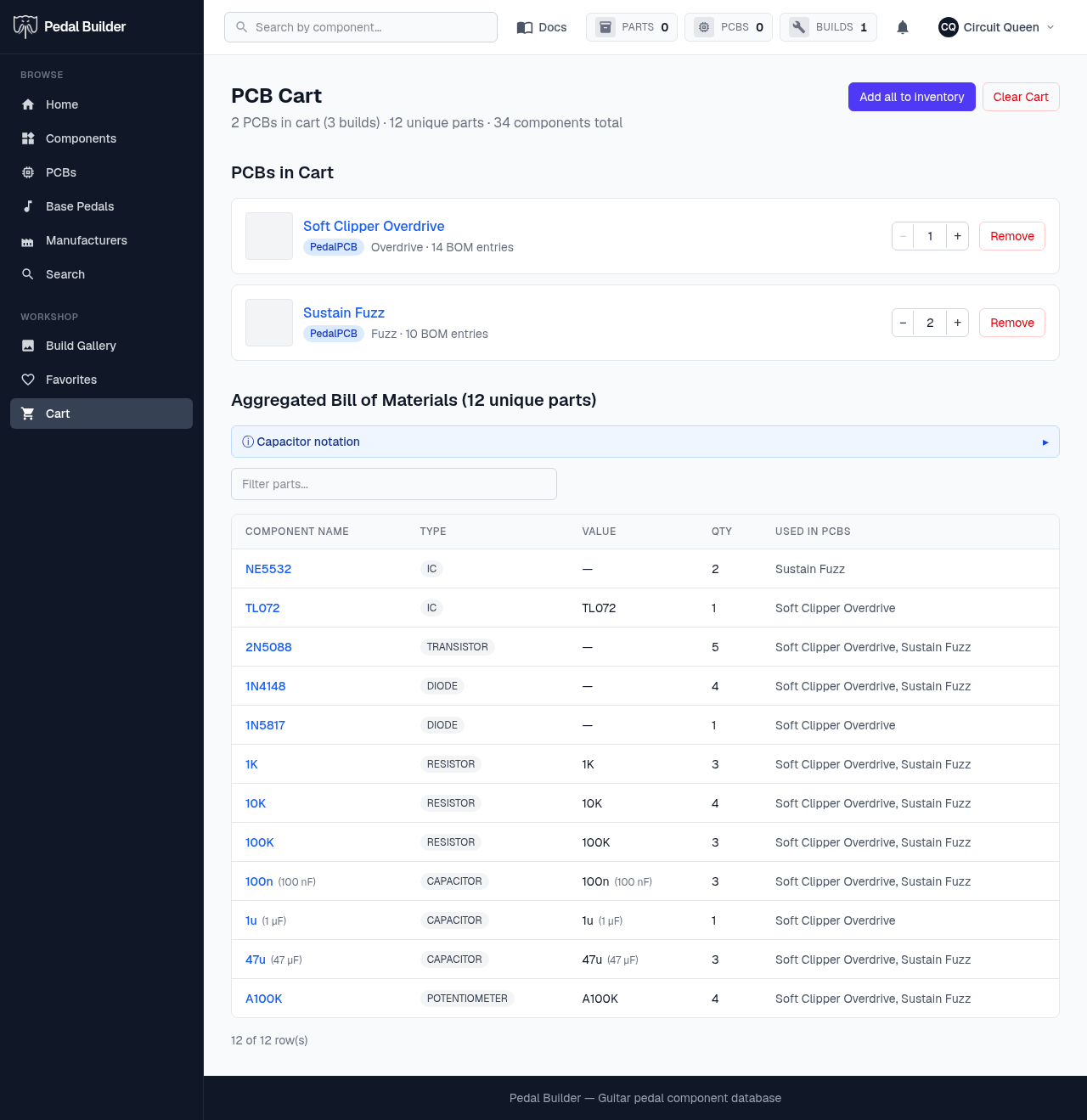
- 1Cart summary — Totals at a glance: how many PCBs (and total builds counting quantities), how many unique parts, and the total component count across everything.
- 2Add all to inventory — Premium: push the whole combined BOM into your parts inventory in one click. “Clear Cart” empties it.
- 3Adjust or remove — Each PCB shows its source and BOM-entry count. Use − / + to set how many of that board you’re building (which scales its parts), or Remove it.
- 4Filter the BOM — Type to narrow the combined parts list — handy when it runs long.
- 5Combined BOM — Every component needed across all the cart’s PCBs, merged into one row per part: Component Name, Type, Value, and Qty (summed, and multiplied by each board’s quantity).
- 6Which PCBs need it — The “Used in PCBs” column shows which boards in the cart call for that part.
Good to know
- Signing in is required; the cart is saved to your account and persists across sessions.
Tips
- Premium users can diff the cart against their inventory (Cart vs inventory) to get a shopping list of only what’s still missing.