Navigation & page layout
Every page outside this documentation shares the same frame: a dark navigation rail down the left and a top bar across the top. Here’s what each part does.
The shell
The left rail moves you between sections; the top bar holds search and your account tools. (Shown signed in as a maintainer.)
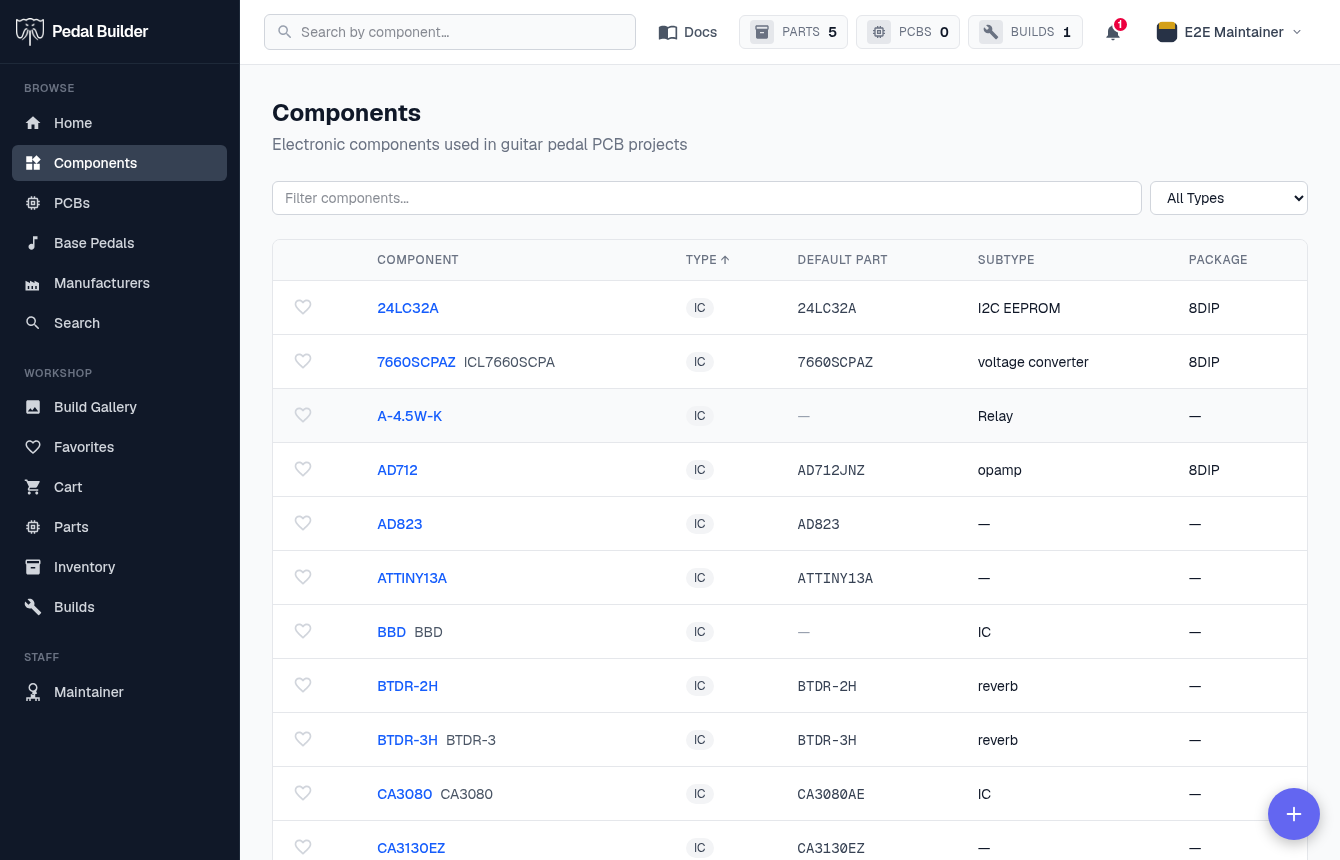
- 1Left navigation — Grouped into Browse (open to everyone — Home, Components, PCBs, Base Pedals, Manufacturers, Search), Workshop (your Build Gallery, Favorites, Cart, Parts, Inventory, Builds), and Staff (Maintainer, Data Health, Admin). You only see the groups your account unlocks, and the current page is highlighted. On a phone it collapses behind a menu button.
- 2Search — Type a part number to jump to the reverse-lookup Search page.
- 3Docs — Opens this documentation — always one click away.
- 4Inventory badges — Live counts — PARTS (parts in your inventory), PCBS (blank boards on hand), and BUILDS (your builds). They stay at 0 until you’re a Premium member with stock.
- 5Notifications — The bell; a red number flags unread replies, @mentions, and announcements.
- 6Account — Signed out this is Sign in / Register; signed in it’s your avatar and name, with a menu to Account settings, your public profile, and sign out.